
November 13, 2024 _ Printing _ BY admin _ 0 Comments
How to Clear Stuck Print Jobs and Fix Printer IP Address Conflicts
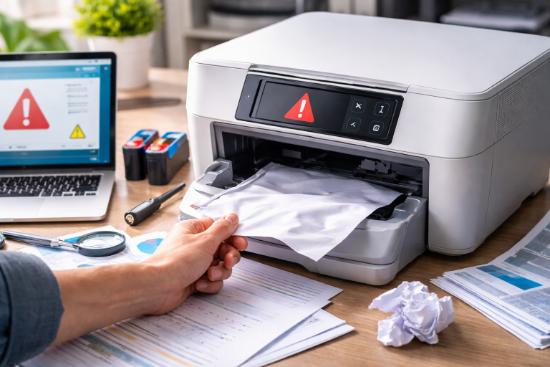
Have you ever sent a document to your printer but nothing happened? Does your print queue show documents waiting indefinitely, or does your wireless printer suddenly stop communicating with your computer?
These problems can occur because of stuck print jobs, print spooler errors or IP address conflicts on your network.
A stuck print job can prevent other documents from printing, while an IP address conflict can interrupt communication between your computer and network printer.
Fortunately, both problems can often be resolved with a few troubleshooting steps.
In this guide, we’ll explain how to clear stuck print jobs and fix printer IP address conflicts on Windows.
Why Do Print Jobs Get Stuck?
Before fixing the issue, it’s useful to understand what causes it.
Some common reasons include:
- Temporary printer or computer connection problems
- Incorrect printer settings
- Outdated or incompatible printer drivers
- Print Spooler service errors
- Multiple documents waiting in the print queue
- Network communication problems
- Incorrect or conflicting printer IP addresses
Let’s start by clearing the print queue.
Part 1: How to Clear Stuck Print Jobs
1. Cancel All Documents in the Print Queue
The first step is to remove documents that are stuck in the printing queue.
Follow these steps:
- Open Windows Settings.
- Select Bluetooth & devices.
- Click Printers & scanners.
- Select your printer.
- Open the print queue.
- Select the stuck document.
- Choose Cancel.
If multiple documents are waiting, cancel each one.
On Windows 10, you can access the same option through Settings > Devices > Printers & scanners.
2. Restart the Print Spooler Service
The Print Spooler is a Windows service that manages printing tasks. If it stops responding, documents may remain stuck in the queue.
To restart it:
- Press Windows + R.
- Type
services.msc. - Press Enter.
- Find Print Spooler in the list.
- Right-click it.
- Select Restart.
- Wait for the service to restart.
Try printing a test page to check whether the problem is resolved.
3. Manually Clear the Print Spooler Files
If documents remain stuck even after restarting the service, you can manually clear the temporary print queue files.
Follow these instructions carefully:
- Press Windows + R.
- Enter
services.msc. - Find Print Spooler.
- Right-click it and select Stop.
- Open File Explorer.
- Navigate to:
C:\Windows\System32\spool\PRINTERS
- Delete the files inside the PRINTERS folder.
- Return to the Services window.
- Right-click Print Spooler.
- Select Start.
Important: Stop the Print Spooler before deleting files. You may need administrator permission to access this folder. This removes pending print jobs, so only do this when you are comfortable clearing the queue.
Part 2: How to Fix Printer IP Address Conflicts
Network printers use IP addresses to communicate with computers connected to the same network.
An IP address conflict can happen when two devices are assigned the same address, or when a printer’s saved network address no longer matches its current configuration.
Here are some ways to troubleshoot the issue.
4. Check Your Printer’s IP Address
Start by checking the IP address currently assigned to your printer.
Depending on the printer model, you may be able to find it through:
- The printer’s network settings menu
- A printed network configuration report
- The manufacturer’s printer management software
- Your router’s connected-device list
Note the IP address displayed by your printer.
You can compare it with the address shown in your computer’s printer settings.
5. Restart Your Printer and Router
Temporary network problems can sometimes cause printers to lose their connection or receive different IP addresses.
Try the following:
- Turn off your printer.
- Restart your Wi-Fi router.
- Wait until the router reconnects to the internet.
- Turn your printer back on.
- Allow it to reconnect to the network.
- Check its current IP address.
If the printer still cannot communicate with your computer, continue to the next step.
6. Assign a Stable IP Address to Your Printer
A network printer may receive a different IP address when the router renews its DHCP assignments.
Using a DHCP reservation on your router can help keep the printer at the same IP address.
The general process is:
- Find your printer’s MAC address in its network settings or configuration report.
- Sign in to your router’s administration page.
- Find the DHCP reservation or address reservation settings.
- Select your printer’s MAC address.
- Reserve an available IP address for it.
- Save the settings and reconnect the printer if necessary.
Router menus differ by manufacturer. Make sure the reserved address is available and configured correctly.
7. Update the Printer’s IP Address on Windows
If your printer’s IP address has changed, Windows may still be trying to communicate using the old address.
You can update the printer connection.
- Open Settings.
- Select Bluetooth & devices.
- Click Printers & scanners.
- Select the affected printer.
- Open Printer properties, if available.
- Check the Ports tab.
- Review the configured TCP/IP port.
If the existing port points to an outdated address, you may need to create a new Standard TCP/IP Port using the printer’s current IP address.
Follow the printer manufacturer’s instructions for the correct port configuration.
8. Reinstall the Network Printer
If the printer still does not work, removing and adding it again may help refresh its connection.
- Open Settings.
- Select Bluetooth & devices.
- Open Printers & scanners.
- Select your printer.
- Choose Remove.
- Restart your computer.
- Select Add device.
- Follow the instructions to add your printer again.
If automatic detection does not work, check whether your printer supports adding it manually through its IP address.
How to Prevent These Problems in the Future
A few simple habits can help reduce printing interruptions:
- Keep printer drivers updated.
- Avoid sending too many large documents at once.
- Check the print queue when documents stop printing.
- Keep your printer connected to a stable network.
- Use a DHCP reservation for network printers when supported.
- Restart your printer occasionally if it becomes unresponsive.
- Check for firmware updates from the printer manufacturer.
Final Thoughts
Stuck print jobs and printer IP address conflicts can interrupt your daily printing tasks, but they do not always require professional repair.
Clearing the print queue, restarting the Print Spooler and checking your printer’s network address are useful first steps.
If the issue continues, review your printer’s network configuration and consult the manufacturer’s support documentation.
Related Guide: How to Set Up a Wireless Printer on a New Mesh Wi-Fi Network.
Disclaimer: This article is intended for general educational purposes. The exact steps may vary depending on your Windows version, printer model and router configuration.

Leave A Comment