
November 13, 2024 _ Technology _ BY admin _ 0 Comments
How to Fix the No Internet, Secured Wi-Fi Error in Windows 11 and 10
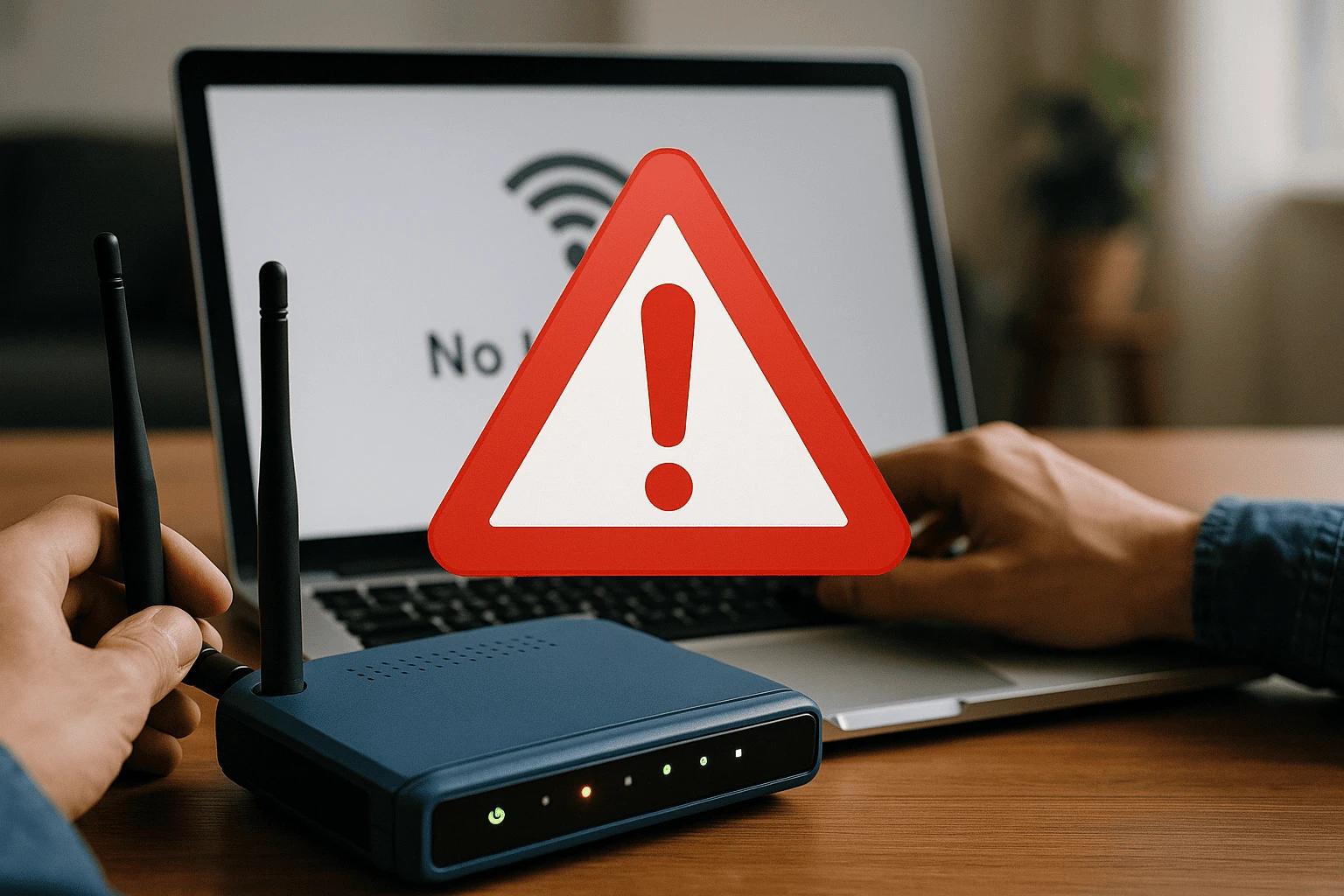
Are you connected to a Wi-Fi network but unable to access the internet? Does your Windows laptop display the message “No Internet, Secured” under your wireless connection?
This error usually means your computer is connected to the Wi-Fi router, but it cannot establish a working internet connection.
The problem may be related to incorrect network settings, DNS configuration, outdated drivers or temporary router issues.
Fortunately, you can try several troubleshooting methods before contacting your internet service provider.
In this guide, we’ll explain how to fix the No Internet, Secured error on Windows 11 and Windows 10.
Why Does Windows Show No Internet, Secured?
There are several possible reasons for this error:
- Temporary problems with your Wi-Fi router
- Incorrect IP address configuration
- Outdated or incompatible network drivers
- DNS server problems
- Corrupted Windows network settings
- Issues with your internet service provider
- Firewall or security software interference
Let’s explore the solutions one by one.
1. Restart Your Wi-Fi Router
A temporary router issue can prevent your computer from accessing the internet even when it is connected to Wi-Fi.
To restart your router:
- Turn off your Wi-Fi router.
- Disconnect its power cable.
- Wait for approximately 30 seconds.
- Reconnect the power cable.
- Wait until the router finishes restarting.
- Reconnect your Windows computer to Wi-Fi.
Open a website to check whether your internet connection is working.
2. Disconnect and Reconnect to Wi-Fi
Sometimes, reconnecting to your wireless network can refresh the connection and resolve temporary errors.
Follow these steps:
- Click the Wi-Fi icon on your taskbar.
- Select your connected wireless network.
- Click Disconnect.
- Wait a few seconds.
- Connect to the same network again.
- Enter your Wi-Fi password if requested.
Check whether the No Internet, Secured message has disappeared.
3. Run the Windows Network Troubleshooter
Windows includes built-in troubleshooting tools that can help identify network connection problems.
For Windows 11:
- Open Settings.
- Select System.
- Click Troubleshoot.
- Choose Other troubleshooters.
- Find Network and Internet or the available network troubleshooter.
- Run the troubleshooter and follow its instructions.
For Windows 10:
- Open Settings.
- Select Network & Internet.
- Open Status.
- Select Network troubleshooter.
- Follow the instructions displayed on the screen.
The available troubleshooting options may vary by Windows version.
4. Reset Your IP Address
Incorrect IP configuration can sometimes prevent your computer from accessing the internet.
You can refresh your IP address using Command Prompt.
- Open the Start menu.
- Search for Command Prompt.
- Select Run as administrator.
- Enter this command:
ipconfig /release
- Press Enter.
- Enter the following command:
ipconfig /renew
- Press Enter again.
Wait for Windows to obtain a new IP address and then test your internet connection.
5. Flush the DNS Cache
DNS problems can also prevent websites from loading correctly.
To clear the DNS cache:
- Open Command Prompt as administrator.
- Type the following command:
ipconfig /flushdns
- Press Enter.
- Wait for the confirmation message.
- Close Command Prompt.
- Open your browser and test the connection.
This process clears stored DNS information so Windows can request updated records.
6. Update Your Wireless Network Driver
An outdated or incompatible Wi-Fi driver may cause connection problems.
To update your driver:
- Right-click the Start button.
- Open Device Manager.
- Expand Network adapters.
- Find your wireless network adapter.
- Right-click the adapter.
- Select Update driver.
- Choose Search automatically for drivers.
If Windows cannot find an updated driver, visit your laptop manufacturer’s official website and check for a compatible version.
7. Reset Winsock and TCP/IP Settings
Windows uses network components such as Winsock and TCP/IP to manage internet communication.
If these components have configuration problems, resetting them may help.
Follow these steps:
- Open Command Prompt as administrator.
- Enter:
netsh winsock reset
- Press Enter.
- Next, enter:
netsh int ip reset
- Press Enter.
- Restart your computer.
After restarting, reconnect to your Wi-Fi network and check the internet connection.
8. Forget the Wi-Fi Network and Connect Again
If your saved wireless network profile has incorrect settings, removing it and reconnecting may resolve the issue.
For Windows 11:
- Open Settings.
- Select Network & Internet.
- Click Wi-Fi.
- Open Manage known networks.
- Find your wireless network.
- Select Forget.
- Connect to the network again using your password.
For Windows 10, open Settings, select Network & Internet, choose Wi-Fi and open Manage known networks.
What If the Problem Continues?
If your computer still displays No Internet, Secured, try connecting another device to the same Wi-Fi network.
- If other devices also have no internet, the problem may be related to your router or internet service provider.
- If other devices work normally, the issue may be specific to your computer’s network settings or wireless adapter.
You can also test your computer using another Wi-Fi network to narrow down the cause.
Final Thoughts
The No Internet, Secured error can prevent your Windows computer from accessing websites even when it appears to be connected to Wi-Fi.
Restarting your router, reconnecting to the network, refreshing your IP address and updating network drivers are useful troubleshooting steps.
Try these solutions one at a time to identify what is causing the problem.
Related Guide: DNS Server Isn’t Responding? 7 Ways to Fix the Error.
Disclaimer: This article is intended for general educational purposes. Network settings and troubleshooting procedures may vary depending on your Windows version and network hardware.


Leave A Comment