
November 13, 2024 _ Technology _ BY admin _ 0 Comments
DNS Server Isn’t Responding? 7 Ways to Fix the Error
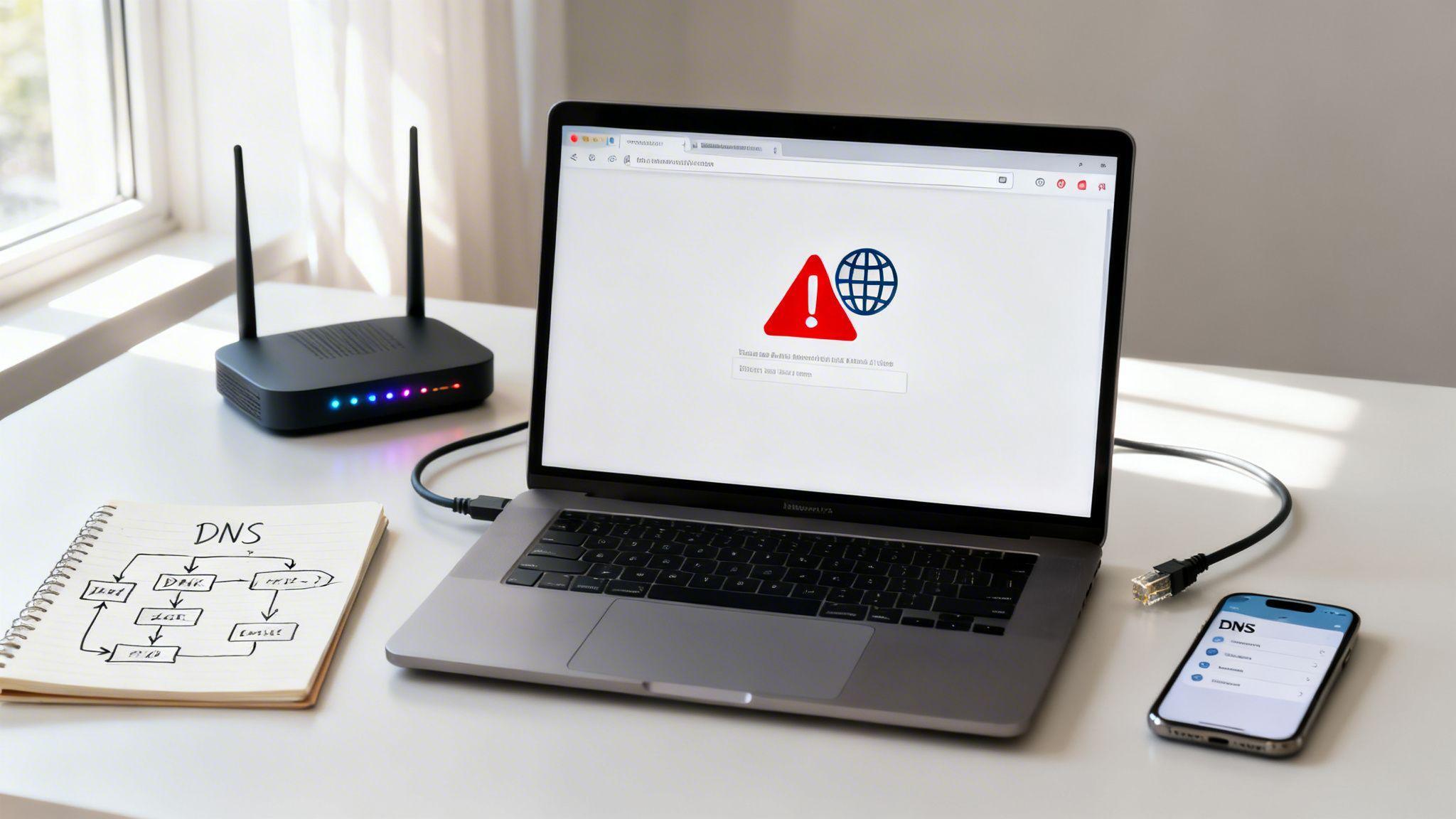
Have you ever tried opening a website only to see an error message saying, “DNS Server Isn’t Responding”? This issue can prevent your computer from accessing websites even when your Wi-Fi connection appears to be working.
DNS stands for Domain Name System. It helps translate website names into IP addresses so your device can locate and connect to websites.
When the DNS server fails to respond, your browser may struggle to load websites.
The good news is that this problem can often be fixed with a few simple troubleshooting steps. In this guide, we’ll explain common causes and show you how to resolve the DNS server error on Windows.
Why Is Your DNS Server Not Responding?
Several issues can cause this error, including:
- Temporary problems with your internet connection
- Incorrect DNS server settings
- Outdated network adapter drivers
- Router or modem issues
- Problems with your internet service provider
- Firewall or security software interference
- Corrupted network configurations
Let’s go through the possible solutions.
1. Restart Your Router and Computer
One of the easiest ways to troubleshoot a DNS error is to restart your network equipment.
Follow these steps:
- Turn off your computer.
- Disconnect your router from its power source.
- Wait approximately 30 seconds.
- Reconnect the router.
- Allow it to restart completely.
- Turn on your computer and try opening a website.
This can resolve temporary network problems and refresh your internet connection.
2. Try Opening Another Website
Sometimes, the problem may be related to a particular website rather than your DNS settings.
To check:
- Open your preferred web browser.
- Visit a different website.
- Try accessing the same website using another browser.
- Check whether other devices connected to the same network can browse the internet.
If only one website is unavailable, the issue may be with that website rather than your computer.
3. Flush the DNS Cache
Windows stores DNS information to help websites load faster. However, outdated or corrupted DNS records can sometimes create connectivity problems.
You can clear the DNS cache using Command Prompt.
- Open the Start menu.
- Search for Command Prompt.
- Right-click it and select Run as administrator.
- Enter the following command:
ipconfig /flushdns
- Press Enter.
- Wait for Windows to confirm that the DNS resolver cache has been flushed.
Restart your browser and try accessing the website again.
4. Change Your DNS Server Address
Your computer usually receives DNS server details automatically from your network. If the assigned DNS server is unavailable, switching to a reliable public DNS provider may help.
For example, Google Public DNS uses these addresses:
- Preferred DNS: 8.8.8.8
- Alternate DNS: 8.8.4.4
To change the settings:
- Open Windows Settings.
- Select Network & Internet.
- Open Advanced network settings.
- Select More network adapter options.
- Right-click your active network connection.
- Select Properties.
- Double-click Internet Protocol Version 4 (TCP/IPv4).
- Select Use the following DNS server addresses.
- Enter the DNS addresses listed above.
- Save your changes.
If the problem continues, you can return to the automatic DNS setting.
5. Restart the DNS Client Service
Windows uses a background service called DNS Client to manage DNS-related information.
Restarting the service may help resolve temporary problems.
- Press Windows + R.
- Type
services.msc. - Press Enter.
- Find DNS Client in the services list.
- Check its status.
- If available, use the restart option.
Some Windows versions may not allow the DNS Client service to be restarted through Services. If the option is unavailable, continue with the other troubleshooting methods.
6. Temporarily Check Firewall or Security Software
Firewall and antivirus programs help protect your computer, but incorrect configurations can sometimes interfere with network communication.
To investigate:
- Open Windows Security.
- Select Firewall & network protection.
- Review your active network profile.
- Check whether any custom firewall rules are blocking your connection.
- Review your antivirus or security software settings.
Do not leave your firewall or antivirus protection disabled. If you suspect a security application is causing the problem, check its documentation or contact its support team.
7. Reset Windows Network Settings
If the DNS error still appears, resetting your network configuration may help.
For Windows 11:
- Open Settings.
- Select Network & Internet.
- Choose Advanced network settings.
- Select Network reset.
- Click Reset now.
- Restart your computer.
For Windows 10:
- Open Settings.
- Select Network & Internet.
- Choose Status.
- Select Network reset.
- Click Reset now.
- Restart your computer.
Remember that network reset may remove saved Wi-Fi connections and reset network adapters.
What If the DNS Error Still Appears?
If none of these solutions works, the issue may be related to your router, internet service provider or network hardware.
You can try connecting through another network to identify whether the problem is limited to your current internet connection.
If multiple devices experience the same issue, contact your internet service provider for assistance.
Final Thoughts
The “DNS Server Isn’t Responding” error can make normal internet browsing frustrating. However, restarting your router, clearing the DNS cache, changing DNS settings and resetting network configurations can often help resolve the issue.
Follow the steps carefully and test your internet connection after each method.
Related Guide: How to Fix the No Internet, Secured Wi-Fi Error in Windows.
Disclaimer: This article is intended for general educational purposes. Network settings and troubleshooting options may vary depending on your Windows version and network configuration.


Leave A Comment