
November 13, 2024 _ Printer Troubleshooting _ BY admin _ 0 Comments
How to Fix a Printer That Keeps Going Offline on Windows 11
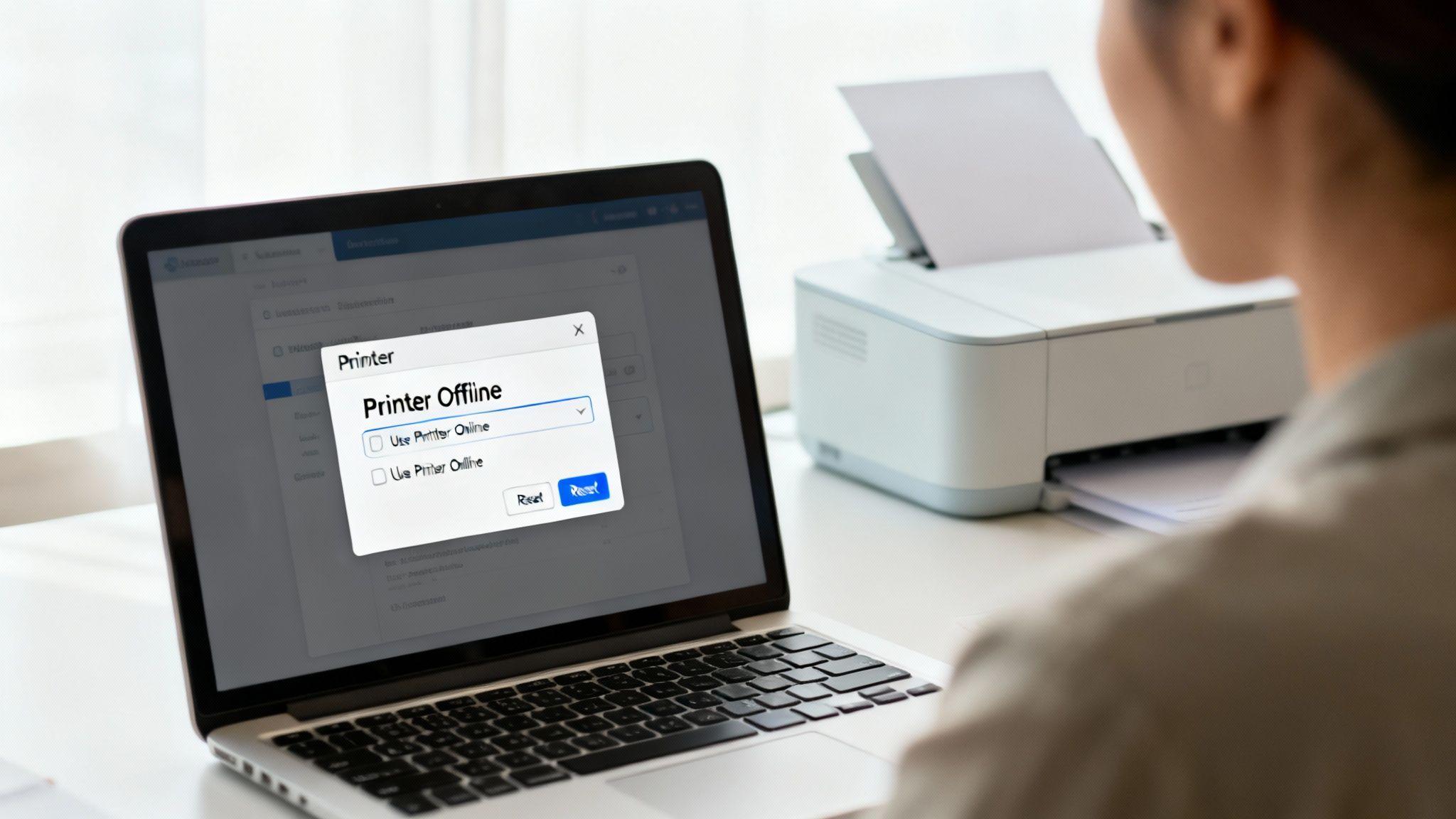
Is your printer showing an Offline status even though it is switched on and connected to your computer? This problem can prevent documents from printing and interrupt your daily work.
Windows 11 may display a printer as offline when it cannot communicate properly with the device. The cause could be a wireless connection issue, incorrect printer settings, outdated drivers or a problem with the Windows Print Spooler service.
Fortunately, you can try several troubleshooting methods to bring your printer back online.
In this guide, we’ll explain how to fix a printer that keeps going offline on Windows 11.
Why Does Your Printer Keep Going Offline?
A printer may repeatedly disconnect from Windows for several reasons:
- Unstable Wi-Fi or network connection
- Printer turned off or in sleep mode
- Incorrect printer port configuration
- Enabled Use Printer Offline setting
- Stuck documents in the print queue
- Outdated or incompatible printer drivers
- Print Spooler service problems
- Changes to the printer’s IP address
Let’s explore the solutions.
1. Check Your Printer’s Power and Connection
Start by checking whether your printer is properly connected.
Follow these steps:
- Make sure your printer is switched on.
- Check the printer display for warning messages.
- Confirm that there is enough paper.
- Check ink or toner levels.
- If using USB, reconnect the cable securely.
- If using Wi-Fi, confirm that the printer is connected to your wireless network.
If the printer has entered sleep mode, use its power button or control panel to wake it up.
2. Disable Use Printer Offline Mode
Windows includes an option that allows users to work with a printer while it is offline. If this setting is enabled accidentally, printing may not resume normally.
To check it:
- Open Windows Settings.
- Select Bluetooth & devices.
- Click Printers & scanners.
- Select your printer.
- Open the print queue.
- Select the Printer menu.
- Check whether Use Printer Offline is enabled.
- If it is selected, click it to disable the option.
Now try printing a test document.
3. Clear the Printer Queue
Sometimes, a document stuck in the print queue can prevent other documents from printing.
To clear pending jobs:
- Open Settings.
- Select Bluetooth & devices.
- Choose Printers & scanners.
- Select your printer.
- Open the print queue.
- Right-click the pending document.
- Select Cancel.
Remove other stuck documents if necessary.
After clearing the queue, send a new print command.
4. Restart the Print Spooler Service
The Print Spooler service manages printing tasks in Windows. If it stops responding, your printer may appear offline.
To restart it:
- Press Windows + R.
- Type
services.msc. - Press Enter.
- Locate Print Spooler.
- Right-click the service.
- Select Restart.
- Wait for it to start again.
Return to your printer queue and check whether the status has changed.
5. Run the Windows Printer Troubleshooter
Windows 11 provides troubleshooting options that can help identify printer-related problems.
Follow these steps:
- Open Settings.
- Select System.
- Click Troubleshoot.
- Choose Other troubleshooters.
- Find the Printer troubleshooter, if available.
- Select Run.
- Follow the instructions displayed on the screen.
You can also use the Get Help application to access available printer troubleshooting assistance.
6. Update Your Printer Driver
An outdated or incompatible printer driver can cause communication problems between Windows and your printer.
To update the driver:
- Right-click the Start button.
- Open Device Manager.
- Expand Printers or Print queues.
- Find your printer.
- Right-click the device.
- Select Update driver.
- Choose Search automatically for drivers.
If no suitable update is found, visit your printer manufacturer’s official website.
Download the driver that matches your printer model and Windows version.
7. Check Your Printer’s IP Address
If you use a wireless or network printer, its IP address may have changed.
Windows might still be trying to communicate with the previous address, causing the printer to appear offline.
To investigate:
- Print a network configuration report from your printer, if supported.
- Find the printer’s current IP address.
- Open Windows Settings.
- Navigate to Printers & scanners.
- Select your printer and open Printer properties, if available.
- Check the Ports tab.
- Compare the configured printer port with the current IP address.
If the port uses an outdated address, configure a new Standard TCP/IP Port using the correct address. Follow your manufacturer’s instructions when changing port settings.
8. Remove and Add Your Printer Again
If the printer still appears offline, removing and reinstalling it may help refresh its Windows configuration.
Follow these instructions:
- Open Settings.
- Select Bluetooth & devices.
- Click Printers & scanners.
- Select the affected printer.
- Click Remove.
- Restart your computer.
- Return to Printers & scanners.
- Select Add device.
- Choose your printer when it appears.
- Complete the installation.
If Windows cannot detect the printer, use the manufacturer’s official installation software or supported manual setup method.
How to Prevent Your Printer From Going Offline
You can reduce repeated connection problems by following a few simple practices:
- Keep your printer driver updated.
- Use a stable Wi-Fi connection.
- Avoid frequently changing router settings.
- Keep the printer within a suitable wireless range.
- Check the print queue when documents stop printing.
- Install compatible firmware updates when available.
- Use a consistent network configuration for wireless printers.
What If Your Printer Still Shows Offline?
If your printer continues to disconnect, test it using another computer or device.
If it works elsewhere, the issue may be related to Windows settings or drivers on your original computer.
If multiple devices cannot communicate with the printer, investigate its network connection or consult the manufacturer’s support documentation.
Final Thoughts
A printer that keeps going offline on Windows 11 can be frustrating, especially when you need to print important documents.
Start with the basic checks, disable offline mode, clear pending print jobs and restart the Print Spooler service.
If the problem continues, check the printer driver and network configuration. These steps can help identify and resolve many common printer connection issues.
Related Guide: How to Share a USB Printer Over Wi-Fi.
Disclaimer: This article is intended for general educational purposes. Printer settings and troubleshooting procedures may vary depending on the printer manufacturer and Windows version.

Leave A Comment