
November 13, 2024 _ Driver Troubleshooting _ BY admin _ 0 Comments
How to Fix the Driver Is Unavailable Error on Windows
Are you trying to print a document, but Windows displays a message saying “Driver Is Unavailable”? This error can prevent your computer from communicating with your printer and stop printing tasks from completing.
The problem commonly occurs when Windows cannot find, install or properly use the required printer driver.
It may also appear after a Windows update, when an incompatible driver is installed or when printer software becomes corrupted.
Fortunately, there are several ways to troubleshoot this issue without immediately replacing your printer.
In this guide, we’ll explain how to fix the printer driver is unavailable error on Windows 10 and Windows 11.
Why Does Windows Show Driver Is Unavailable?
Some common reasons include:
- Outdated or incompatible printer drivers
- Corrupted printer driver installation
- Incorrect printer model selected during installation
- Windows update compatibility issues
- Missing printer software components
- Problems with the Windows Print Spooler service
- Incorrect printer configuration
Let’s go through the possible solutions.
1. Restart Your Computer and Printer
Start with a basic restart to clear temporary connection and software problems.
- Save your open documents.
- Turn off your printer.
- Restart your Windows computer.
- Wait for Windows to load.
- Turn your printer back on.
- Check whether the driver error still appears.
If the problem was caused by a temporary system issue, this may resolve it.
2. Run Windows Update
An outdated Windows installation can sometimes create compatibility problems with connected hardware.
To check for updates:
- Open Windows Settings.
- Select Windows Update.
- Click Check for updates.
- Install available compatible updates.
- Restart your computer if required.
After updating Windows, check whether your printer driver is working correctly.
3. Update the Printer Driver Through Device Manager
Windows Device Manager allows you to check connected devices and manage their drivers.
Follow these steps:
- Right-click the Start button.
- Open Device Manager.
- Expand Printers or Print queues.
- Find your printer.
- Right-click the device.
- Select Update driver.
- Choose Search automatically for drivers.
Follow any additional instructions displayed by Windows.
If Windows cannot find a suitable driver, visit the manufacturer’s official website.
4. Download the Correct Driver From the Manufacturer
Installing the wrong driver can cause communication problems between Windows and your printer.
For the best compatibility, download the driver directly from the printer manufacturer’s official website.
Before downloading:
- Confirm your exact printer model.
- Check whether you are using Windows 10 or Windows 11.
- Select the correct operating system version.
- Download the recommended driver or full-feature software package, if available.
After downloading:
- Open the downloaded installation file.
- Follow the setup instructions.
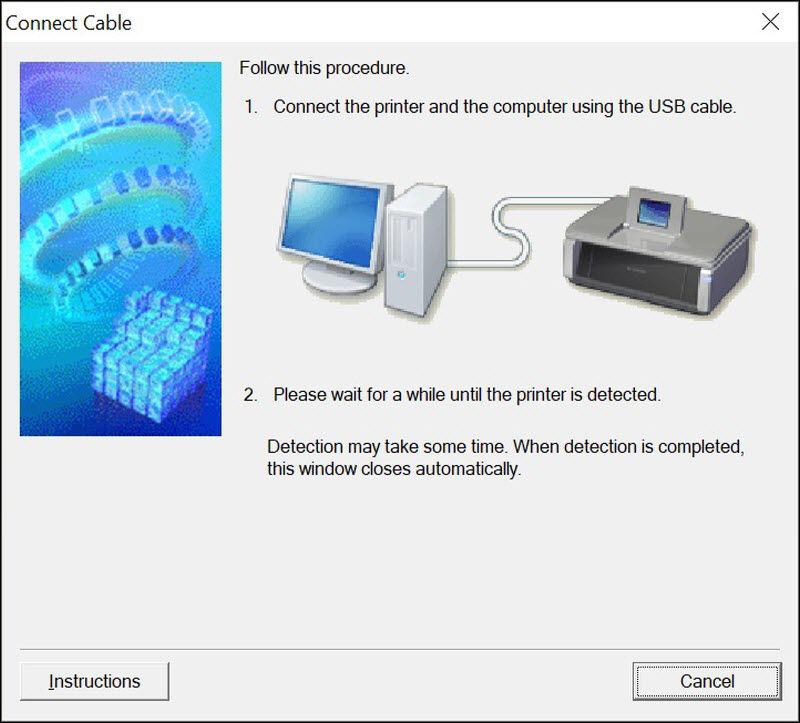
- Connect your printer when prompted.
- Complete the installation.
- Restart your computer if necessary.
Avoid downloading drivers from unknown third-party websites.
5. Remove and Reinstall Your Printer
If the existing printer installation is damaged, removing the device and adding it again may help.
For Windows 11:
- Open Settings.
- Select Bluetooth & devices.
- Click Printers & scanners.
- Select your printer.
- Choose Remove.
- Restart your computer.
- Return to Printers & scanners.
- Select Add device.
- Follow the installation instructions.
For Windows 10:
- Open Settings.
- Select Devices.
- Click Printers & scanners.
- Choose your printer.
- Select Remove device.
- Restart your computer.
- Add the printer again.
If automatic installation does not work, use the compatible driver downloaded from the manufacturer’s website.
6. Restart the Print Spooler Service
The Print Spooler service manages printing tasks in Windows. If it stops working correctly, it may affect printer communication.
To restart it:
- Press Windows + R.
- Type
services.msc. - Press Enter.
- Find Print Spooler.
- Right-click the service.
- Select Restart.
- Wait for it to restart.
Try printing a test page to see whether the problem has been resolved.
7. Check Windows Driver Compatibility
Some older printers may not have dedicated drivers for newer Windows versions.
Before installing a driver, check the manufacturer’s compatibility information.
If the manufacturer provides a compatible alternative driver or installation method, follow its instructions.
You can also check whether your printer supports Microsoft IPP Class Drivers or another Windows-supported driver option.
Do not force-install an incompatible driver, as this may create additional printing problems.
8. Check Your Printer Connection
Sometimes, Windows may report a driver-related error when the printer is not communicating correctly.
Check the following:
- Make sure the printer is switched on.
- Reconnect the USB cable if you use a wired connection.
- Confirm that the printer is connected to the correct Wi-Fi network.
- Check whether the printer displays any warning messages.
- Confirm that your computer can detect the device.
If you use a wireless printer, restart your router if the network connection appears unstable.
What If the Driver Is Still Unavailable?
If none of these methods works, the printer may require a different driver package or a manufacturer-specific installation process.
Check the manufacturer’s support website for:
- Compatible Windows drivers
- Firmware updates
- Installation instructions
- Known compatibility issues
- Alternative driver recommendations
If the printer is no longer supported, contact the manufacturer to confirm which installation options are available.
Final Thoughts
The printer driver is unavailable error usually means Windows cannot properly communicate with the installed printer software.
Restarting your devices, updating Windows, installing the correct driver and reinstalling the printer can help resolve many common cases.
Always verify the printer model and Windows compatibility before downloading or installing a driver.
Related Guide: How to Fix a Printer That Keeps Going Offline on Windows 11.
Disclaimer: This article is intended for general educational purposes. Driver availability and installation procedures may vary depending on the printer manufacturer and Windows version.

Leave A Comment